
Managing your laptop’s power settings does not have to feel confusing, especially when you are just getting started. Sleep mode is one of the easiest and most useful features every laptop user should understand. It helps save battery, keeps your work safe, and lets your laptop wake up within seconds.
In this guide, we will explain how to put a laptop in sleep mode in simple and clear language. You will also find easy steps and helpful tips that make your everyday laptop use much more convenient.
What is Sleep Mode in a Laptop?
Sleep mode is a low-power state designed to pause your laptop without fully turning it off. Your apps, documents, and browser tabs stay open in the background, ready to resume instantly.
Think of it as putting your laptop on a “short break” rather than ending the session.
Sleep mode:
- Keeps your work and apps exactly as they are
- Uses very little battery
- Wakes up almost instantly
- Is perfect for quick pauses throughout the day
For beginners, it’s one of the easiest and safest ways to manage your laptop.
Benefits of Using Sleep Mode in a Laptop
Using sleep mode regularly can boost your productivity and help protect your device. Here are the main advantages:
1. Saves Your Time
You no longer need to wait for your laptop to start up. With a quick press of a key, it wakes instantly and lets you continue exactly where you stopped.
2. Protects Your Work
Your open files and unsaved documents stay safely stored in memory. If you step away for a short moment, sleep mode keeps everything secure and ready.
3. Saves Battery
Sleep mode uses very little power, making it perfect for travel, meetings, or short breaks during the day.
4. Helps Your Laptop Last Longer
Reducing the number of full shutdown and restart cycles lowers the strain on internal components, especially the storage drive.
5. Ideal for Everyday Use
Whether you are working, studying, or browsing, sleep mode adds comfort and convenience to your daily routine.
How to Put a Laptop in Sleep Mode on Windows?
Windows laptops give you several simple ways to enter sleep mode. You can pick the method that feels most convenient for your routine.
Using the Start Menu
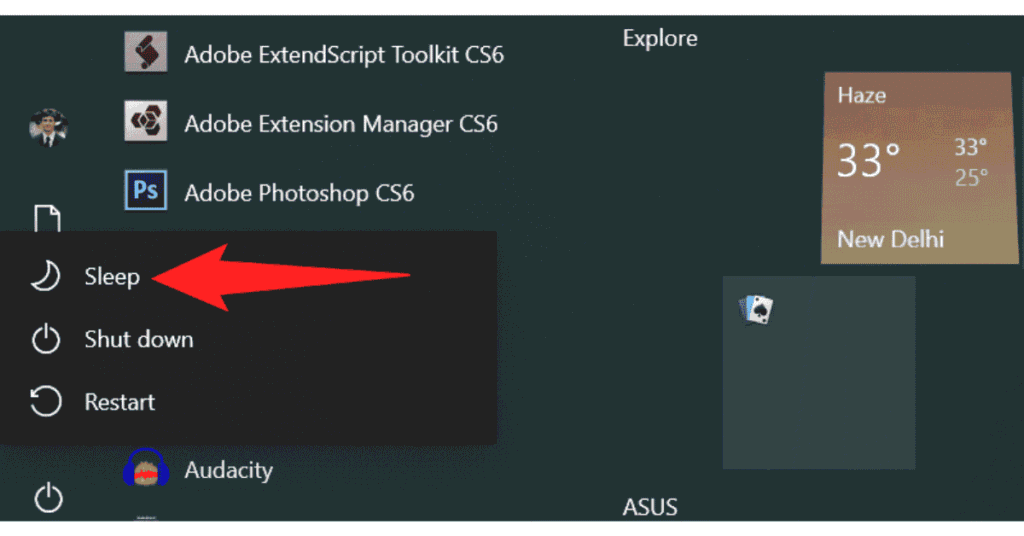
The easiest way for beginners is through the Start menu. Just click the Windows Start button, select the Power icon, and then click Sleep. Your laptop will enter sleep mode immediately, letting you pick up right where you left off.
Using Keyboard Shortcuts
Some Windows laptops let you enter sleep mode using keyboard shortcuts. Common options include pressing Windows + X, then U, followed by S, or using a dedicated Sleep key if your laptop has one. The exact key may vary depending on your laptop brand, like HP, Dell, or Lenovo.
Closing the Lid
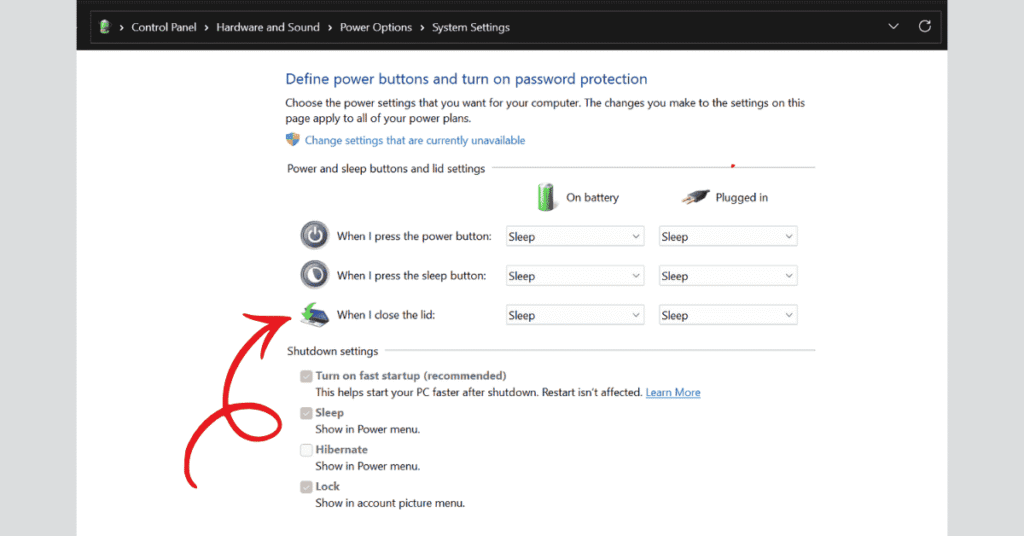
If you prefer your laptop to sleep automatically when you close the lid, this is a simple option. Open the Control Panel, go to Power Options, and click Choose what closing the lid does. Set it to Sleep, and now your laptop will go into sleep mode every time you close it. This method is especially convenient when traveling or moving between rooms.
How to Put a Laptop in Sleep Mode on macOS?
MacBooks make using sleep mode simple and seamless. There are several easy ways to put your Mac to sleep.
Using the Apple Menu
The most straightforward method is through the Apple menu. Click the Apple logo in the top-left corner of your screen and select Sleep. Your Mac will enter sleep mode immediately, letting you return to your work quickly.
Using the Power or Touch ID Button
You can also put your Mac to sleep with a single press of the Power or Touch ID button. Simply press it once, and your Mac goes into sleep mode right away without needing to hold the button.
Closing the MacBook Lid
One of the simplest options is just closing your MacBook lid. This automatically puts your laptop into sleep mode, so no additional setup is needed. It is especially convenient when you are on the move.
Using a Keyboard Shortcut
For users who prefer keyboard shortcuts, press Control + Command + the Power button. This quick combination instantly puts your Mac to sleep, making it ideal for those who work primarily with the keyboard.
How to Customize Sleep Settings?
Custom sleep settings give you more control over when your laptop sleeps and how much power it uses.
On Windows
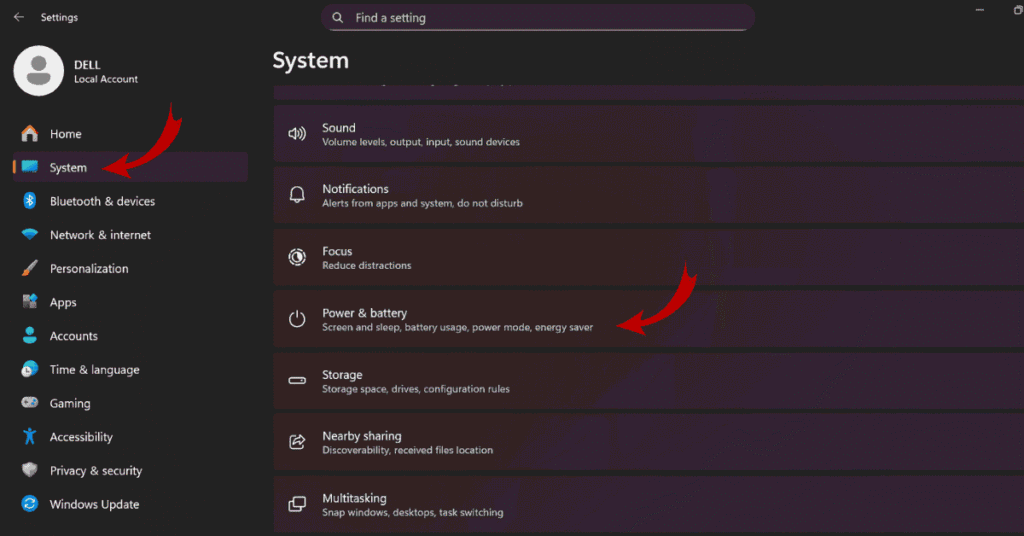
Go to Settings → System → Power & Sleep
Adjust:
- When the screen turns off
- When the device sleeps
- Battery vs. plugged-in behavior
You can also modify lid-closing and power-button actions.
On macOS
Open System Settings → Battery
Customize sleep timers for:
- Battery mode
- Power adapter mode
- Display sleep
- System sleep
macOS automatically manages background tasks to prevent accidental sleep during updates or downloads.
When to Use Sleep Mode vs Shutdown vs Hibernate?
| Option | Best For | Key Benefits |
| Sleep Mode | Short breaks, meetings, moving between rooms, quick returns | Uses very little power and lets your laptop wake instantly, so you can continue right where you left off. |
| Hibernate (Windows Only) | Leaving your laptop unused overnight, saving battery while traveling, long breaks | Uses almost no power, making it ideal for longer periods of inactivity, though waking up takes a bit longer than sleep mode. |
| Shutdown | Not using the laptop for several days, installing updates, refreshing system performance | Completely powers off your laptop, helping maintain system performance and giving a fresh start when you turn it back on. |
Final Words
Sleep mode is one of the simplest yet most useful features on any laptop. Whether you’re working, studying, or using your laptop casually, knowing how to put a laptop in sleep mode helps you save time, protect your work, and improve your device’s efficiency.
As a beginner, start with the easiest method, like closing the lid or using the Start menu, and gradually explore advanced settings as you become more comfortable. With just a few clicks, you can make your laptop experience smoother and more efficient.
FAQs
What is sleep mode and why should I use it?
Sleep mode is a low-power state that keeps your laptop on standby while protecting your open files. It’s perfect for short breaks, moving between locations, or when you want to resume work quickly without restarting your laptop.
How long can a laptop stay in sleep mode?
Most laptops can stay in sleep mode for several hours or even overnight. However, battery life will gradually decrease if the laptop isn’t plugged in, so it’s best for short-term use rather than extended periods.
Does sleep mode save battery?
Yes. Sleep mode consumes very little power, making it ideal for saving battery during short breaks, meetings, or while commuting. For longer periods without use, hibernate or shutdown might be more efficient.
Will my work be safe in sleep mode?
Absolutely. Sleep mode keeps all your open files and unsaved documents stored in memory. You can step away for a while, and your work will remain intact when you return.
How to put a laptop in sleep mode quickly?
There are several easy ways to put your laptop in sleep mode. You can use the Start menu or power button on Windows, keyboard shortcuts, or simply close your MacBook lid. Adjusting your settings for one-touch sleep can make it even faster.
Is sleep mode better than shutting down?
It depends on your needs. Sleep mode is perfect for short breaks and instant wake-ups. Shutting down is better when you won’t use your laptop for a few days or need to refresh system performance. Hibernate is ideal for longer breaks without draining the battery.
Can sleep mode affect my laptop’s lifespan?
Using sleep mode regularly is safe and can even reduce wear on hardware by minimizing shutdown and restart cycles. It’s a gentle way to maintain your laptop over time while staying productive.