

Your laptop was working fine yesterday. Today, it just won’t join your WiFi network — no error that makes sense, no obvious reason. Before you assume the worst, know this: most laptop WiFi problems come down to a simple setting, an outdated driver or a router that needs a refresh. True hardware failure is actually the least common cause.
This guide walks through every possible reason your laptop won’t connect to WiFi, starting with a 30-second check that tells you exactly where the problem lives.
Quick Diagnostic: Is It Your Laptop or Your Router?
Before trying any fix, answer one question: does WiFi work on your phone or another device on the same network?
- Yes, other devices connect fine → The problem is isolated to your laptop (driver, adapter, or settings).
- No, nothing connects → The problem is your router, modem, or internet service provider.
This single check saves you from wasting time on the wrong fixes, so keep your answer in mind as you read on.
Common Causes & Fixes
1. WiFi Is Turned Off or Airplane Mode Is On
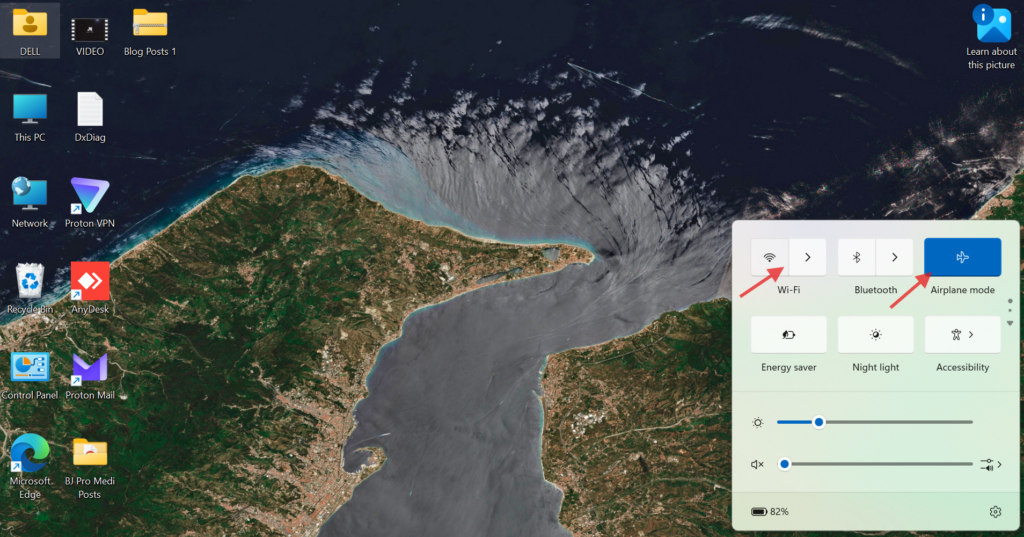
Many laptops have a physical WiFi switch or a function key (often Fn + F2, F12, or a dedicated wireless icon) that can get toggled by accident. Airplane Mode does the same thing by design — it shuts off all wireless radios at once.
Fix: Check your taskbar or menu bar for the WiFi icon and confirm Airplane Mode is off.
2. Wrong Password or Saved Network Conflict
An incorrect password is the most obvious cause, but a previously saved network with outdated credentials can also silently block reconnection.
Fix: “Forget” the network in your WiFi settings, then rejoin and enter the password fresh.
3. Router Needs a Restart
Routers accumulate small glitches over time, especially after long uptime or a power flicker.
Fix: Unplug the router and modem for 30 seconds, then power them back on and wait a minute before reconnecting. If the router restart alone doesn’t help, try restarting your laptop as well — a fresh boot clears temporary network glitches on the laptop’s side too.
4. Outdated or Corrupted Network Drivers
The network driver is the software that lets your operating system talk to your WiFi hardware. When it’s outdated or corrupted, connections become unstable or fail entirely.
Fix: Update the driver through Device Manager (Windows) or check for a macOS software update.
5. Incorrect IP or DNS Configuration
Sometimes your laptop connects to the network but gets a bad IP address or can’t resolve DNS properly, which can look identical to a total connection failure.
Fix: Release and renew your IP, then flush DNS. On Windows, open Command Prompt and run:
ipconfig /release
ipconfig /renew
ipconfig /flushdns
6. VPN or Proxy Interference
A VPN client or manually configured proxy can quietly block your WiFi connection, especially after an update or a misconfigured setting.
Fix: Temporarily disable your VPN or reset proxy settings to automatic, then try reconnecting.
7. Network Adapter Needs a Reset
If drivers look fine but WiFi still won’t cooperate, the adapter’s internal configuration may be stuck.
Fix: On Windows, run netsh winsock reset in Command Prompt as administrator, then restart your laptop.
8. Malware or Conflicting Software
Malware, or even a recently installed app, can interfere with network components without any obvious symptoms elsewhere.
Fix: Run a full security scan and review recently installed programs.
9. Signal Interference or Distance
Thick walls, microwaves, Bluetooth devices, and even other WiFi networks nearby can weaken your signal enough to prevent a stable connection.
Fix: Move closer to the router, or reduce the number of devices/obstacles between you and it.
10. Frequency Band Mismatch
Some older laptops only support 2.4GHz WiFi and can’t see or join a 5GHz-only network, which shows up as the network simply not appearing in the list.
Fix: Check your router settings to confirm it’s broadcasting a 2.4GHz band, or check your adapter’s supported bands.
11. Too Many Connected Devices or Router Limits
Some routers cap the number of simultaneous connections, or use MAC address filtering that can accidentally exclude your laptop.
Fix: Check your router’s connected-devices list and MAC filter settings.
12. Faulty WiFi Hardware
If every software fix fails and other devices connect normally, the laptop’s wireless adapter, antenna, or motherboard connection may be physically damaged.
Fix: This typically requires professional diagnosis (more on this below). As a last resort before booking a repair, some users find a full power drain helps: switch off the laptop properly, then, if your model allows it, remove the battery for a minute before reconnecting it — this fully resets the hardware in a way a normal restart doesn’t.
Where Is the WiFi Option on My Laptop?
If you’re not sure where to even look, here’s where WiFi settings live:
- Windows: Click the network icon in the taskbar (bottom-right corner), or go to Settings > Network & Internet > WiFi to turn it on and select a network.
- Mac: Click the WiFi icon in the menu bar (top-right corner), or go to System Settings > WiFi.
- Physical switch/key: Many HP, Dell, and Lenovo laptops have a dedicated WiFi key along the top row (often paired with Fn) or, on older models, a physical slider switch along the side.
Once WiFi is turned on, click your network name from the list, enter the password, and select “Connect.”
Note: If WiFi seems to vanish specifically after your laptop has been idle, this is often related to sleep settings rather than the network itself. Check our guides on putting a laptop in sleep mode and waking a laptop from sleep mode if you notice WiFi doesn’t reconnect properly after your laptop wakes up.
Windows vs. Mac: Where the Steps Differ
Both systems share the same underlying causes, but the built-in repair tools differ slightly:
- Windows has a built-in Network Troubleshooter (right-click the WiFi icon → “Diagnose network problems”) that automatically checks and repairs common issues.
- Mac offers Wireless Diagnostics (hold Option and click the WiFi icon → “Open Wireless Diagnostics”) for a similar automated check.
Both are worth running early — they catch a surprising number of these causes automatically.
Special Case: Connects to WiFi But No Internet
This is a different problem from not connecting at all. If your laptop shows as “connected” but pages won’t load, the cause is usually DNS or IP-related rather than a WiFi adapter issue. Start with the IP/DNS fix above (Cause #5) before touching drivers or hardware.
Special Case: Public/Hotel WiFi Won’t Load (Captive Portal)
Public networks often require a login page (“captive portal”) to appear before internet access is granted. If it doesn’t pop up automatically, try opening any website manually (like a non-HTTPS page) to trigger it, or temporarily disable “Private DNS” or “DNS over HTTPS” in your settings, since these can block the portal from loading.
When to Consider Professional Repair
If you’ve worked through every cause above and other devices still connect fine while your laptop doesn’t, hardware is the likely culprit — commonly the wireless adapter or internal antenna connection. This is usually an affordable, targeted repair rather than a reason to replace the laptop, but it does need a technician’s diagnosis rather than another software fix.
Quick-Reference Checklist / Recap
- WiFi and Airplane Mode toggled correctly
- Correct password entered / network forgotten and rejoined
- Router and modem restarted
- Network drivers updated
- IP released/renewed, DNS flushed
- VPN/proxy disabled temporarily
- Network adapter reset
- Security scan run
- Checked signal strength and distance
- Confirmed frequency band compatibility (2.4GHz vs 5GHz)
- Checked router’s connected-device limit/MAC filter
- Ruled out hardware failure
If you’ve gone through this list and you’re still stuck, it’s time for a professional look at the hardware — but for most people, one of the fixes above gets things back online in a few minutes.
FAQs
Q: Why does my laptop keep disconnecting from WiFi even after I reconnect?
This is usually a power-saving setting, not a driver or router issue. Windows can be set to shut off your wireless adapter to save battery. Fix: In Device Manager, open your WiFi adapter’s properties, go to the Power Management tab, and uncheck “Allow the computer to turn off this device to save power.”
Q: Why does my laptop say “No Internet, Secured”?
This means your laptop is connected to the router but isn’t getting proper internet access, usually due to an IP conflict or an ISP-side outage rather than a WiFi problem. Try the IP release/renew and DNS flush commands from Cause #5 above before contacting your ISP.
Q: Why can’t my laptop find any WiFi networks at all?
If no networks appear in the list — not even neighboring ones — the wireless adapter likely isn’t running. Check Device Manager to confirm the adapter is enabled, or try updating/reinstalling its driver, since a disabled or crashed adapter service won’t scan for networks.
Q: Why is my laptop’s WiFi slower than my phone’s on the same network?
This is often a frequency band difference — phones frequently connect to 5GHz automatically, while older laptop adapters default to the more congested 2.4GHz band. Check your network adapter’s supported bands and manually connect to the 5GHz network if available.
Q: Can a Windows update cause WiFi problems?
Yes. Occasionally an update installs a generic driver that overwrites your manufacturer’s WiFi driver, causing instability. If problems started right after an update, roll back the driver via Device Manager > Network Adapters > Driver tab > “Roll Back Driver.”
Q: How do I know if it’s my laptop’s WiFi card that’s broken, not just a settings issue?
If every fix above fails, other devices connect fine, and the adapter doesn’t appear at all in Device Manager (or shows an error icon), that points to hardware failure rather than a software fix.