
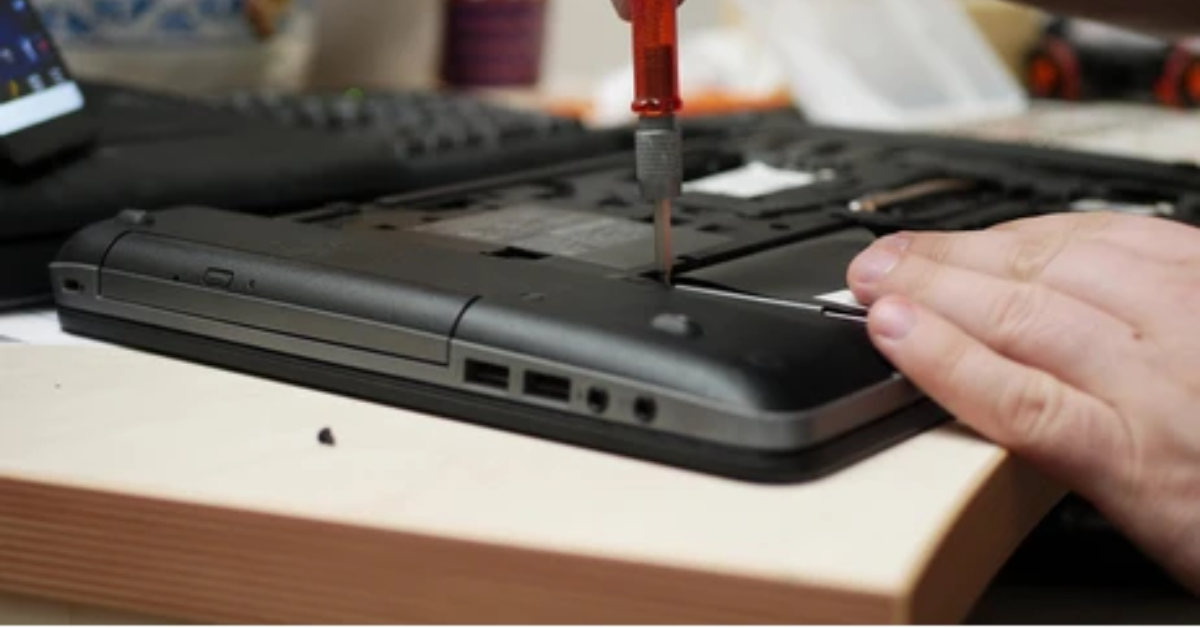
Opening a laptop might seem simple, but doing it the wrong way can snap clips, damage internal components or even void your warranty.
If you’ve ever wondered how to open a laptop, how to safely open a laptop back cover, or whether it is safe to open a laptop back panel, you’re in the right place.
In this updated guide, you’ll learn how to properly open a laptop, step by step, using the right tools and techniques, without causing damage. Whether you want to clean your fan, upgrade RAM or just explore inside, this guide will walk you through everything clearly.
Is It Safe to Open a Laptop Back Panel?
Yes, but only if you do it correctly.
Modern laptops are designed differently:
- Some have removable back covers
- Others use hidden clips or sealed designs
Opening your laptop incorrectly can:
- Break plastic clips
- Damage internal cables
- Void your warranty
Pro Tip: Always check your laptop model before opening. Some ultrabooks and MacBooks are not designed for easy access.
Tools You Need to Open a Laptop Safely
Before you start, gather the right tools:
- Small screwdriver set (Phillips head)
- Plastic pry tool or spudger
- Anti-static wrist strap (recommended)
- Clean, flat workspace
- Small container for screws
Using proper tools makes it much easier to take off the back of a laptop without damage.
How to Open a Laptop (Step-by-Step Guide)
Follow these steps carefully to open your laptop safely:
Step 1: Power Off and Disconnect Everything
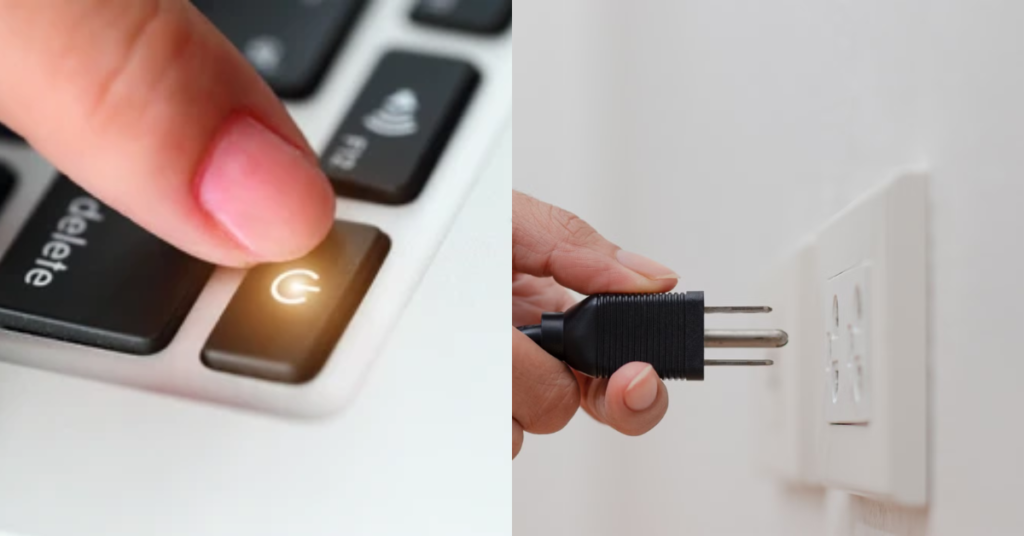
Before you begin the process of opening a laptop, make sure the device is completely powered down and disconnected from any power source.
- Shut down your laptop fully (don’t use sleep or hibernate mode)
- Unplug the charging cable
- Remove all connected devices such as USB drives, mouse, keyboard or external hard drives
This step is essential to safely open a laptop and prevents electrical short circuits or accidental damage to internal components.
Pro Tip: Hold the power button for 5–10 seconds after shutdown to discharge any remaining electrical current.
Step 2: Remove the Battery

If you’re wondering how to properly open a laptop, removing the battery (when possible) is a critical safety step.
For laptops with removable batteries:
- Turn the laptop upside down on a flat surface
- Locate the battery release latches
- Slide or unlock them carefully
- Gently lift and remove the battery
For modern laptops with built-in batteries:
You won’t be able to remove it externally, so take extra care when you open the laptop back cover in later steps.
Why this matters: Removing the battery reduces the risk of electrical damage and makes it safer to handle internal parts.
Step 3: Unscrew the Back Panel
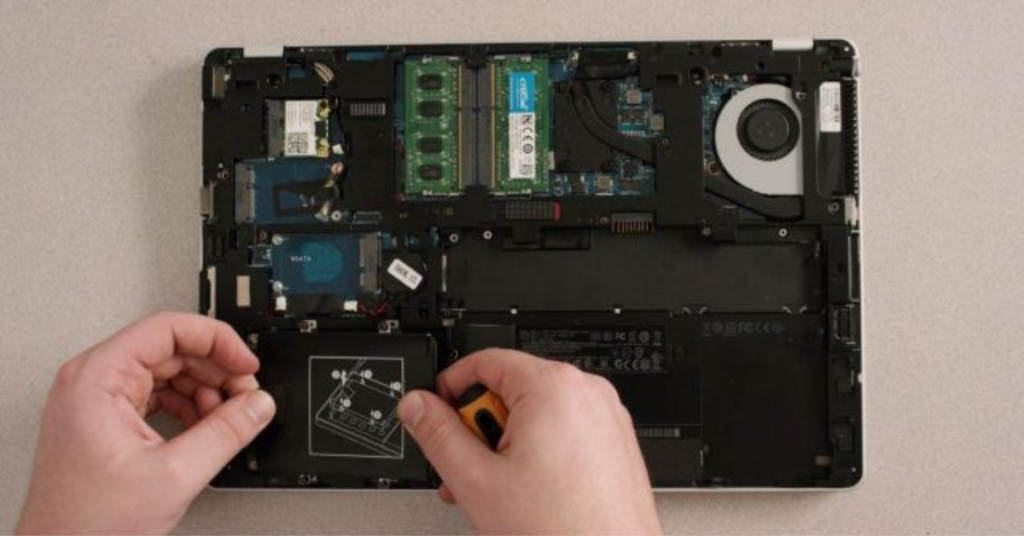
This is one of the most important steps in learning how to open a laptop back panel correctly.
Inspect the bottom of your laptop carefully
- Locate all visible screws (usually around the edges)
- Use the correct screwdriver size to avoid stripping screws
- Place each screw in a container or arrange them in order
Important:
Some laptop brands hide screws under:
- Rubber feet
- Stickers or labels
Missing even one screw is a common reason why people struggle when trying to take off the back of a laptop.
Pro Tip: Take a quick photo of the screw layout before removing them—it helps during reassembly.
Step 4: Gently Pry Open the Back Cover

This is the most delicate part when learning how to safely open a laptop back cover.
- Insert a plastic pry tool (spudger) into a small gap along the edge
- Start from a corner or near the hinge area
- Slowly slide the tool along the edges to release clips
You’ll hear soft “click” sounds, this means the internal clips are unlocking.
Do NOT rush or force it.
If the panel doesn’t lift easily:
- Recheck for hidden screws
- Try a different edge
Many modern laptops use tight clip systems, so patience is key when trying to open a laptop without damaging it.
Avoid this mistake: Never use metal tools, they can scratch the body or damage internal circuits.
Tips to Avoid Damaging Your Laptop
- Be gentle: Don’t pressure screws or panels.
- Organize screws: Use a classified field to avoid losing or mixing them up.
- Work in a smooth surroundings: Dust and dirt can damage internal components.
- Avoid static electricity: Always ground yourself before touching components.
Step 5: Carefully Access Internal Components
Once you successfully open your laptop, you’ll gain access to internal hardware such as:
- RAM (memory modules)
- Storage (SSD or HDD)
- Cooling fan and heat sink
- Battery (in non-removable designs)
At this stage, you’ve successfully learned how to open a laptop safely, but handling components requires extra care.
- Avoid touching circuits or connectors directly
- Do not apply pressure on delicate parts
- Use an anti-static wrist strap if available
Pro Tip: If your goal is cleaning, use compressed air instead of touching components directly.
How to Open a Laptop Without Damaging It (Pro Tips)
If you want to properly open a laptop, these tips make all the difference:
- Work slowly, rushing causes damage
- Never use metal tools to pry
- Keep track of screws carefully
- Don’t pull the panel, lift it gently
- Watch for ribbon cables attached to the panel
What to Do If the Laptop Back Cover Won’t Open
This is a very common issue.
If your laptop isn’t opening:
- Recheck for hidden screws
- Look under rubber pads
- Apply gentle pressure, not force
- Try opening from a different edge
Many modern laptops use tight clips, it’s normal to feel resistance.
Different Laptop Designs (Important in 2026)
Not all laptop brands use the same design, which directly affects how to open a laptop safely. Understanding your laptop type will make it much easier to open the back panel without causing damage.
| Laptop Design Type | Key Features | Opening Difficulty | Best Approach |
| Removable Back Panel | Screws are visible, easy access to internals | Easy | Unscrew and gently lift the panel using a plastic tool |
| Sealed Ultrabooks | Thin, compact design with tightly fitted panels | Medium–Hard | Open slowly with a pry tool; check for hidden screws |
| Screwless Clip Designs | Hidden clips instead of visible screws | Medium | Use precise prying along edges to release clips carefully |
Identifying your laptop type helps you understand how to open a laptop back cover and avoid damaging internal components.
Conclusion
Learning how to open a laptop safely might seem intimidating at first, but with the right tools, proper steps, and a little patience, it becomes a straightforward process. Whether you’re trying to open a laptop back cover for cleaning, upgrades, or basic maintenance, following the correct approach helps you avoid costly damage.
The key is to work slowly, stay organized, and understand your laptop’s design before you begin. Not all laptop brands are built the same, so taking a careful and informed approach ensures better results.
In the end, knowing how to properly open a laptop isn’t just a technical skill, it’s a practical way to extend your device’s lifespan, improve performance, and take better control of your tech.
FAQs
Will opening a laptop affect its performance?
No, opening a laptop itself does not affect performance. However, improper handling while opening it can damage components, which may lead to performance issues.
Can opening a laptop improve cooling or overheating issues?
Yes. Opening a laptop allows you to clean dust from the cooling fan and vents, which can significantly improve airflow and reduce overheating.
Do I need technical skills to open a laptop?
Basic technical knowledge is helpful but most users can learn how to open a laptop safely by following proper steps and using the right tools.
What should I avoid touching inside a laptop?
Avoid touching the motherboard, connectors, and circuits directly. These components are sensitive and can be damaged by static electricity or pressure.
Can I upgrade my laptop after opening it?
Yes, many laptops allow upgrades like RAM or storage. However, upgrade options depend on the model, as some modern laptops have soldered components.
Why are modern laptops harder to open?
Modern laptops are thinner and more compact, often using sealed designs, hidden screws, and strong clips. This makes it more challenging to open a laptop back cover safely compared to older models.
Related Laptop Guides You May Find Helpful
If you want to learn more about laptop usage, maintenance and troubleshooting, explore these detailed step-by-step guides from Electro Gadget Plus: