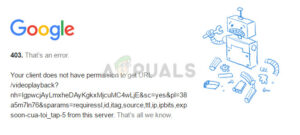

You click a link, and instead of the page loading, Chrome throws back “403 Forbidden” — no real explanation, just a flat refusal. It’s an oddly frustrating error because it doesn’t feel like something is broken; it feels like you’re being deliberately shut out.
I ran into this myself recently while trying to open a site I’d visited dozens of times before. No warning, no reason — just 403. After trying a few things, what actually fixed it was clearing my browsing data entirely (cache, cookies, and history), and the page loaded normally right after. But that’s not the only cause of this error, and this guide covers every reason it can happen, not just the one that happened to work for me.
What Does a 403 Forbidden Error Actually Mean?
A 403 error means the server received your request and understood it perfectly, but it’s actively refusing to let you in. This is different from a 404 (the page doesn’t exist) or a 401 (you need to log in first). With a 403, the page exists and Chrome connected to it fine — access is simply being denied, either by your own browser’s stored data, your network, or the website’s own security rules.
Quick Diagnostic: Is It Your Browser or the Website?
Before working through fixes one by one, try this: open the same URL in an incognito window (Ctrl + Shift + N on Windows, Command + Shift + N on Mac), or try a completely different browser.
- Loads fine in incognito/another browser → The issue is local to your regular Chrome profile (cache, cookies, or an extension).
- Still shows 403 everywhere → The issue is likely your network, IP, or the website itself.
This one check narrows down which section below actually applies to you.
Causes on Your Side (Browser, Cache & Network)
1. Corrupted or Outdated Cached Site Data
This was the cause in my own case. Chrome stores cookies and cached files for every site you visit, and when that stored data becomes outdated or corrupted, the server can reject the request outright.
Fix: Go to the three-dot menu > Settings > Privacy and Security > Third-party cookies (or Site Settings) > See all site data and permissions. Search for the site, delete its stored data, then reload the page.
2. A Broken or Outdated Bookmarked Link
If you’re accessing the page through an old bookmark or a link shared a while ago, the URL structure may have changed since then, and the old path may now point to a restricted or removed directory.
Fix: Visit the site’s homepage directly and navigate to the page manually instead of using the old link.
3. A Conflicting Browser Extension
Ad blockers, privacy tools, and some security extensions can interfere with how a page loads, occasionally triggering a 403 instead of just blocking ads or trackers.
Fix: Go to the three-dot menu > Extensions > Manage Extensions, and disable each one individually, reloading the page after each, until you find the culprit.
4. VPN or Proxy Triggering an IP Block
Many websites block or challenge traffic from VPN and proxy IP ranges automatically, since these are commonly associated with bots and abuse, even when you’re a legitimate visitor.
Fix: Temporarily disable your VPN or proxy and reload the page. If it works without it, the site is blocking that IP range specifically.
5. Firewall or Antivirus Software Blocking the Site
Security software on your device or network can sometimes flag a legitimate site as suspicious and silently block the connection, which Chrome then displays as a 403.
Fix: Temporarily pause your firewall or antivirus’s web protection feature and try reloading. Re-enable it once you’ve confirmed this is the cause.
6. DNS Cache or DNS-over-HTTPS Conflicts
An outdated DNS cache, or a mismatch between your system DNS and Chrome’s built-in Secure DNS (DNS-over-HTTPS), can occasionally route your request incorrectly and result in a 403.
Fix: Flush your DNS cache. On Windows, open Command Prompt and run:
ipconfig /flushdns
Also check Chrome’s Settings > Privacy and Security > Security, and try toggling “Use secure DNS” off temporarily to see if that resolves it.
7. Corrupted Chrome User Profile
Rarely, the Chrome profile itself becomes corrupted, causing unpredictable errors across multiple sites, not just one.
Fix: Create a new Chrome profile (three-dot menu > Settings > You and Google > Add another profile) and test the same URL there.
Causes on the Website’s Side
8. Incorrect File or Folder Permissions
If you manage the website yourself, a 403 often means the file or folder permissions on the server are set too restrictively, blocking public access entirely.
Fix: Check permissions through your hosting control panel or FTP client; most web files should be set to 644 and folders to 755.
9. A Misconfigured .htaccess File
For sites running on Apache servers, an error or overly restrictive rule inside the .htaccess file can block visitors from reaching pages that should be public.
Fix: Temporarily rename the .htaccess file to back it up, reload the page, and if it works, review the file for incorrect deny rules.
10. A Security Plugin Blocking Access
On platforms like WordPress, security plugins (such as firewall or login-protection plugins) can mistakenly flag a visitor’s IP or browser as suspicious and block access.
Fix: If you’re the site owner, check the plugin’s activity log for blocked IPs and whitelist legitimate visitors as needed.
11. CDN or Firewall Security Rules (Cloudflare, etc.)
Sites using a CDN or security layer like Cloudflare can trigger a 403 when their automated rules flag a visitor’s traffic pattern, country, or IP reputation as risky.
Fix: As a visitor, there’s little you can do beyond trying a different network. As a site owner, check your CDN’s security event log to see why the block was triggered and adjust the rule.
12. Hotlink Protection Blocking Direct File Access
Some sites block direct access to images, PDFs, or other files when they’re not loaded from within the site itself, which shows up as a 403 if you try to open the file’s direct URL.
Fix: Access the file through the actual page it’s embedded on rather than opening the file link directly.
13. Expired Login Session on a Restricted Page
Trying to access an admin area or members-only page after your session has expired can also return a 403 rather than redirecting you to log in again, depending on how the site is built.
Fix: Go to the site’s login page directly and sign in again before retrying the original link.
FAQs
Q: Why do I get a 403 error only on one specific website, not others?
This points to something specific to that site’s stored data, permissions, or security settings rather than a general Chrome or network problem. Start with clearing that site’s cached data specifically, then work through the VPN and extension checks above.
Q: Why does clearing my browsing history fix a 403 error?
Chrome sometimes holds onto outdated cookies or cached authentication data tied to a site, and when the server no longer recognizes that stored data as valid, it can reject the request. Clearing it forces Chrome to request everything fresh.
Q: Can restarting my router fix a 403 Forbidden error?
Yes, in some cases. If your IP address has been temporarily flagged or your router’s connection is causing an inconsistent DNS lookup, restarting it can assign a fresh IP and resolve the issue.
Q: Is a 403 error the same as being blocked by a website?
Not always. It can mean an intentional block, but it more often means a permissions or configuration issue, either on the site’s server or in your own browser’s stored data.
Q: Should I be worried a 403 error means my device has a virus?
No, a 403 is a server-side access response, not a sign of malware. It’s worth running a security scan only if the error appears alongside other unusual browser behavior, not on its own.
Quick-Reference Checklist
- Tested in incognito mode or another browser
- Cleared the site’s cached data and cookies
- Checked the URL is current, not an old bookmark
- Disabled extensions one by one
- Disabled VPN/proxy temporarily
- Paused firewall/antivirus temporarily
- Flushed DNS cache / toggled Secure DNS
- Tested with a new Chrome profile
- (Site owners) Checked file/folder permissions
- (Site owners) Reviewed .htaccess file
- (Site owners) Checked security plugin or CDN logs
If you’ve worked through this list and still hit a wall, the block is most likely coming from the website’s own security settings rather than anything on your end — at that point, reaching out to the site owner is your best next step.
Related Guides
- How to Wake Up a Laptop from Sleep Mode
- How to Put a Laptop in Sleep Mode
- Restarting Your Laptop: A Step-by-Step Tutorial
- Secure Your Laptop: How to Lock It When Stepping Away
- How to Switch Off Laptop Properly
- How to Remove Laptop Battery
- Step-by-Step Guide to Opening Your Laptop Screen
- Step-by-Step Guide to Opening Your Laptop Keyboard Safely
- Step-by-Step Guide to Opening Your Laptop Safely
- Laptop Won’t Connect to WiFi? Here’s Why (And How to Fix It)